
Purpose of transaction import
The rate service provides exchange rates in real time, but its role ends when the cardholder accepts or declines the DCC offer. It doesn’t process or settle transactions, so Fexco doesn’t know how each transaction was completed. The transaction file fills that gap by feeding two systems:- Mercury: Fexco’s transaction processing system, which validates the file and records each transaction.
- Fresh Insights: Fexco’s business intelligence and reporting platform, which generates revenue reports, throughput analysis, and commission calculations.
What a transaction file contains
A transaction file reports card transactions processed through your terminals, ATMs, or e-commerce channels during a given period. The file includes three categories of transaction:- Converted transactions: the cardholder accepted the DCC offer and paid in their home currency.
- Unconverted transactions: the cardholder was offered DCC but declined it. These must be included under the same Merchant Originator Tag as converted transactions.
- Domestic transactions: the card was not eligible for DCC (for example, a domestic card), so no offer was made.
In the XML I-file schema, the entry mode field is named
customerInstructions.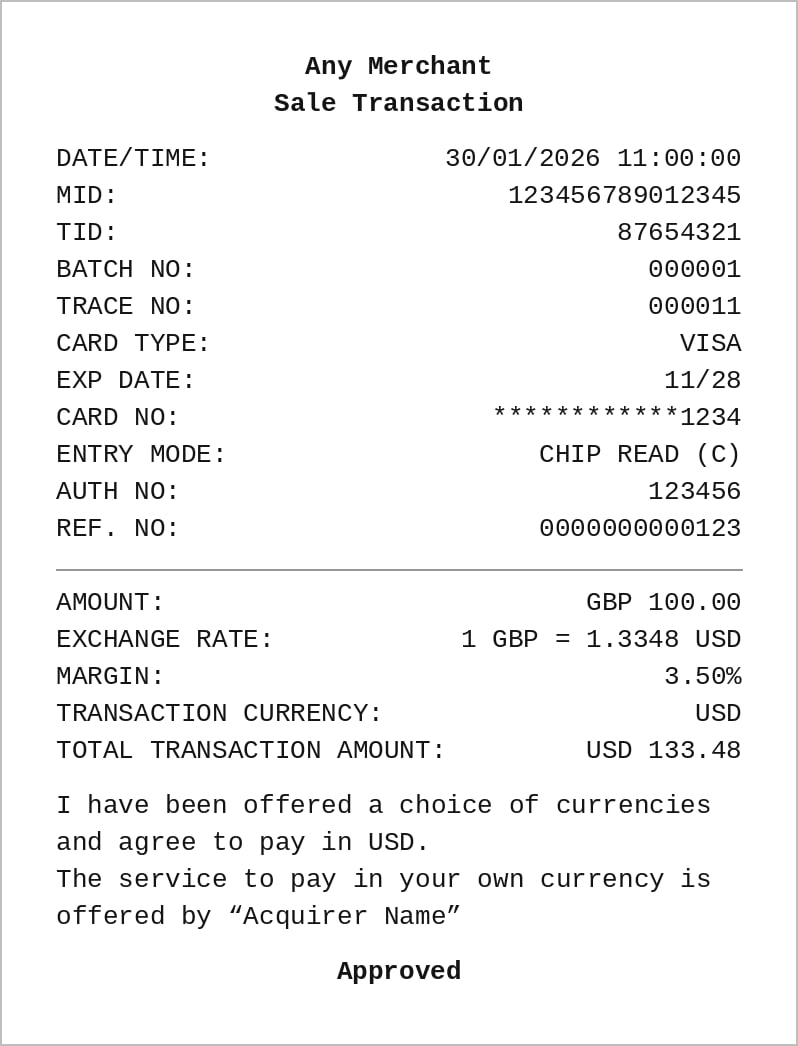
POS sale receipt (Visa) showing the exchange rate, margin, and converted amount.
Which transactions to include
The transaction file is a daily record of all transactions where DCC was offered. It runs in parallel to any clearing files you submit to the card schemes. Its contents must be consistent with the transactions cleared to the schemes so that both can be reconciled.General rule
Include a transaction when all of the following apply:- It is a financial transaction that results in a posting to the cardholder’s account.
- It was approved by the issuer (or on the issuer’s behalf, for example, stand-in processing).
- DCC was offered to the cardholder, whether the cardholder accepted or declined. Each record must indicate the DCC outcome.
Processing cycle
The file must align with the 24-hour processing cycle, including cut-off time, used by your organisation. Each transaction must be included once only, in the cycle in which it was completed (single message) or presented for clearing (dual message).- Single message (SMS)
- Dual message (DMS)
In a single message environment, authorisation, clearing, and settlement are completed in one online message. Include transactions based on the outcome of the financial message.
A request and response pair must produce one record only.
Refunds
Include refunds where they are linked to an original DCC transaction, in both single and dual message environments. Exclude standalone refunds with no linked original DCC transaction.Partial approvals
Include partially approved transactions for the approved amount only. Because the DCC rate and converted amount are quoted on the full transaction amount, partial approvals can create a mismatch between what the cardholder accepted and what is processed. Either handle partial approvals appropriately for DCC transactions at the host or terminal, or do not send the partial approval indicator on the authorisation request for DCC transactions.Transactions always excluded
Exclude the following regardless of message type:- Transactions where DCC was not offered (ineligible cards, domestic cards, merchants not enabled for DCC, or a rate request that failed or timed out).
- Declined, failed, cancelled, or voided transactions with the corresponding sale.
- Pre-authorisations, including incremental pre-authorisations. Only the completion (single message) or first presentment (dual message) is included.
- Duplicate or repeat submissions of a transaction already included.
Transaction import file formats
Fexco supports three transaction file formats. All three serve the same purpose, but they differ in structure and which integrations use them.
See
Choose a file format
for a detailed comparison of when to use each format.
How the daily file cycle works
Transaction import follows a daily cycle of building, submitting, and reviewing files via Secure File Transfer Protocol (SFTP):- Build the transaction file At the end of each business day (or at the agreed reporting interval), collect all card transactions from your terminals, ATMs, or e-commerce channels and format them into the file format you have agreed with Fexco. Each file must pass integrity checks before submission. See Understanding file integrity below.
-
Encrypt and submit via SFTP
Upload the file to the
Incomingfolder on your designated Fexco SFTP server. XML I-files must be encrypted with GNU Privacy Guard (GPG) before submission (the encrypted file uses a.gpgsuffix). I-files and V-files follow the encryption requirements agreed during security setup. - Fexco validates the file: Fexco picks up the file automatically at a scheduled time and validates its structure, integrity, and content. If the file passes validation, the transactions are loaded into Mercury and Fresh Insights.
-
Review the confirmation files
Fexco places confirmation files in the
Outgoingfolder on your SFTP server. The confirmation tells you whether the file was accepted, partially accepted, or rejected. Each build-and-submit guide explains the confirmation file format for its file type.The confirmation shows the file was fully accepted with no rejected transactions. -
Correct and resubmit if needed: How you resubmit depends on whether the entire file was rejected or only some transactions failed.
- Whole file rejection: the file failed structural or integrity validation and no transactions were processed. Correct the errors and resubmit the full file without incrementing the sequence number.
- Partial rejection: the file was accepted but some individual transactions were rejected. Resubmit only the rejected transactions in a new file with the sequence number incremented.
Understanding file integrity
I-files and V-files have two levels of integrity checking. A failure in either level causes the entire file to be rejected. XML I-files use XSD schema validation instead of the record-level checks described below.Financial integrity
Transaction records roll up into a hierarchical structure that must balance at every level:- Transaction records are grouped by merchant, terminal, and currency.
- Summary records total the number and net value of transactions for each group.
- Claim records total the number and net value of all summary records for each merchant.
- Trailer records total the number and net value of all claim records in the file.
Logical integrity
Every record in the file is assigned a sequence number starting at0000001 and incrementing by one. The trailer record contains the
total record count, which must equal the highest sequence number
used. Any break in numbering or an incorrect total causes a
logical integrity failure and the file is rejected.
Next steps
Now that you understand what transaction import is and how the daily file cycle works, choose your file format and start building your file:- Choose a file format: compare XML I-file, I-file, and V-file to decide which format to use.
- Build and submit an XML I-file: step-by-step guide for the XML I-file format.
- Build and submit an I-file: step-by-step guide for the fixed-length I-file format.